Skip Navigation

Monday, February 23 will be a Virtual Learning day for PGCPS (Code Brown). Schools are closed for in-person instruction and all schools will move to virtual teaching and learning. Synchronous virtual instruction will start on a 2-hour delayed schedule. All offices are closed for in-person work; all offices will operate virtually. Emergency personnel only should report to work with a two-hour delay.

There will be no half-day Early Childhood Center (ECC), half-day Special Education Programs, or half-day PreK.

There will be no half-day Early Childhood Center (ECC), half-day Special Education Programs, or half-day PreK.

Families are encouraged to review virtual learning guidance so students are prepared to connect for virtual learning.  
Celebrating Black Voices

From read-ins to art exhibits and beyond, PGCPS schools are bringing Black history to life — engaging students, sparking conversations, and honoring stories that inspire us all.

Saluting Those Powering Safe Schools

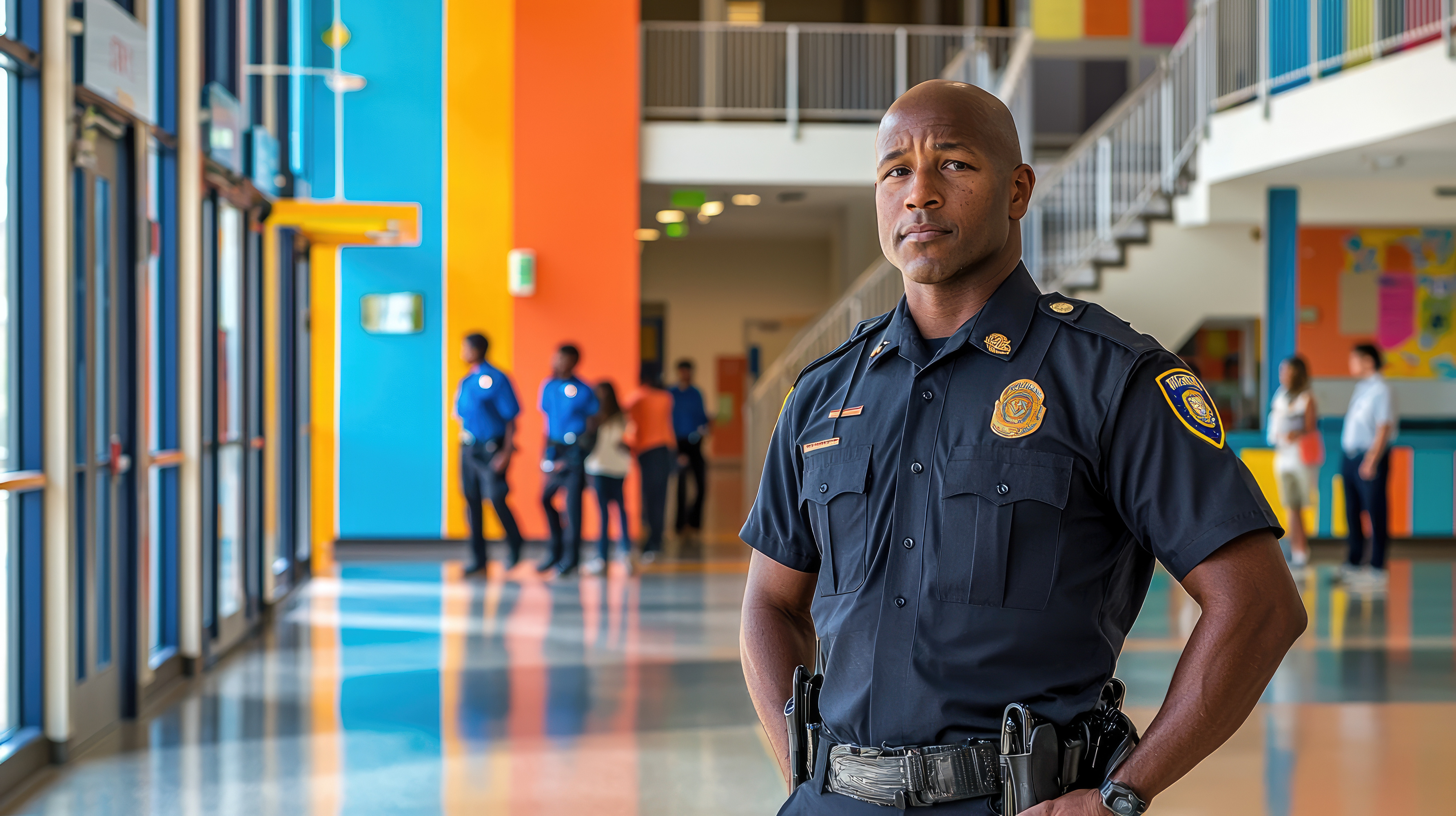
On February 27 we celebrate our inaugural Safety and Security Professionals Day, honoring more than 400 dedicated team members who work every day to keep our schools safe, supportive and primed for student success!

Explore Our Virtual Education Day Plan

Find out what we are doing to ensure learning continues even when there is an unexpected snow day.

Celebrate Career and Technical Education Month!

Career and Technical Education (CTE) Month celebrates hands-on learning that prepares students for real-world careers through technical skills, industry knowledge, and practical experience. Throughout February, we spotlight programs that connect classroom learning to college, careers, and community success.

Inside the State of Our Schools — Beyond the Address

Explore the people powering progress, the practices driving results, and the priorities we’re investing in to shape what’s next for PGCPS.

Hiring Open for the 2026-27 School Year

A New View of Progress Across PGCPS!

Interactive data dashboards put real-time school and district insights into the hands of families and the community! Track growth, performance, and success across every school with just a click.

Power of We: Showing Up for Families, Every Day

PGCPS is expanding meal programs and connecting families to resources that provide comfort, stability, and support when it’s needed most!

Inside the Strategies Powering Academic Gains

2025 MCAP data show that lift-off is underway! Bold teaching, focused supports, and relentless drive are fueling gains — with progress across grade levels, results that outpace peers statewide and more than 30,000 students poised for proficiency. Step inside the strategies behind the surge.

Know What You're Looking For?

By the Numbers

Schools

200 NUMBER OF SCHOOLS FOR 2025-2026 SCHOOL YEAR

Schools

154 #1 IN GREEN SCHOOLS

PGCPS tops all Maryland districts in total number of green schools certifications
Students

132,854 NUMBER OF STUDENTS FOR 2025-2026 SCHOOL YEAR

Rich Text Field Heading

Rich Text Field Description. Vivamus magna a in augue eget elit eu ut. Lectus sagittis nisi sollicitudin lacus vitae sapien nisl egestas id. Commodo egestas purus aenean a tempus lorem urna scelerisque euismod.

00:00: This guide will walk you through creating a rich text block and optimizely covering

00:04: various actions such as creating the blog populating it with content

00:08: and Publishing changes.

00:12: Start by creating a new block on a page that allows a rich text block.

00:18: Let's give our block a name.

00:21: We'll call this one. Rich text.

00:24: Once you have given your block a name, you should see some variation of what's called a rich

00:28: text property. This is where you enter the bulk of the content for

00:32: the block. Most standard Rich Text properties look

00:36: very similar to how Microsoft Word is set up when it comes to the tools available

00:40: for editing content. Optimizely has the unique capability

00:44: of being able to alter the tools available to content editors.

00:48: So the rich text Tools in this video May differ from your own solution.

00:53: Developers are able to adjust the functionality of this property in code.

00:58: It's pretty common to have multiple versions of text formats.

01:02: From regular paragraph to heading elements buttons and image Styles.

01:06: The rich text block is what you want to use if you plan on making very custom content

01:10: on your site.

01:13: For example, we will select the heading 2 option to see how it impacts the content.

01:17: We've typed into this property.

01:20: You can see the style changed and if we were to push this to the site, it would be a

01:24: heading Two element on the page.

01:27: We will add some regular paragraph text to add more content to our property.

01:33: Next let's show you how to add a link. Linking is one of the most common

01:37: use cases for choosing a rich text block for content on your site.

01:42: Add some text you can see we added this is a link to the property.

01:47: Highlight the text you want a link.

01:50: Click on the link icon in the toolbar.

01:53: A modal will appear that will allow content editors to make decisions about how

01:57: they want their link to work. Content editors can choose to link

02:01: to different pages media external Pages email and much

02:05: more. They can even decide if the link should open in the same page

02:09: or a new tab.

02:12: In our example, we'll link to another page on our site.

02:15: We will click on select page.

02:18: Now we get a new modal. This is our page tree for the site.

02:22: We can select any page here as a destination for our link.

02:27: Once we are happy with the destination for our link, we will click okay?

02:32: Let's confirm our selection by clicking. Okay again.

02:36: You can now see that the text you highlighted at the beginning of this process is blue

02:40: and underlined. This is visually how you confirm that your link

02:44: was made.

02:46: In some solutions you may have the option to add in buttons to the rich text area.

02:51: In order to do that, you must first create a link and then content editors can

02:55: select which button style they want. Keep in mind the selections

02:59: you see in this video may not be available in your solution.

03:04: You can now see my link has turned into a button.

03:08: The rich text area also supports media.

03:10: We will show you how to add an image to the content area.

03:15: Start by finding the media assets panel on the right.

03:19: Go to the media tab.

03:22: Inside of the media tab are all the media assets available to content editors

03:26: in the CMS. We will add a simple image to our content

03:30: area by simply dragging an image from the media assets panel into the rich text

03:35: property. If you are following along you will see the rich

03:39: text property will display a dotted blue line around it when you click and start

03:43: dragging an image. That dotted line indicates that whatever

03:47: you are dragging with your mouse is allowed inside of that property.

03:51: Inside the rich text area you can drag Pages blocks and more.

03:55: Although C2 does not recommend you do this because it can overcomplicate

03:59: the rich text property.

04:02: Now that we can see our image. Let's create our block on a page.

04:07: If you want to edit the content of the block, we just created we can click on the three

04:11: dots and click edit.

04:14: Doing that last step will bring you back into the block.

04:17: Let's showcase another piece of functionality that can exist inside of the rich

04:21: text property. Here you can see we have a source code tool.

04:26: This will allow content editors to edit the code of the block itself allowing for

04:30: maximum customization of its styling.

04:34: If you click into this tool, you can see the current markup of what's in the property.

04:39: Content editors can write their own code to introduce their own Styles and in

04:43: some solutions even insert their own Scripts.

04:46: Anyone adjusting the markup of the rich text property needs to ensure they don't

04:51: over customize the block to a point where it may not look like it belongs with the rest

04:55: of the site.

04:57: Some other standard tools available to content editors are copy cut

05:01: bulleted lists numbered lists indents paragraph

05:05: formatting inserting images bold italicize and

05:09: much much more. Remember to publish your content in order to view

05:14: it on the site.

05:16: That concludes our guide on how to create a rich text block and optimizely

05:21: Please be on the lookout for more videos from the C2 group.

05:24: Thank you for watching and have a great day.

Optional Button

Rich Text Field Heading

Rich Text Field Description. Vivamus magna a in augue eget elit eu ut. Lectus sagittis nisi sollicitudin lacus vitae sapien nisl egestas id. Commodo egestas purus aenean a tempus lorem urna scelerisque euismod.

Optional Button

Open